


Australia Student & Expat Resource Hub | NammAustralia Australia Student & Expat Resource Hub | NammAustralia

Latest post

Is a Monthly Rideshare Statement an Official Tax Document?

Is a Monthly Rideshare Statement an Official Tax Document?

  • Aarav
  • July 16, 2026
Where to Find Rideshare Gross Earnings Statements for BAS (2026)

Where to Find Rideshare Gross Earnings Statements for BAS (2026)

  • Sara
  • July 16, 2026
How to Download Your Annual Tax Summary from the Uber Driver Dashboard

How to Download Your Annual Tax Summary from the Uber Driver Dashboard

  • Maithili
  • July 16, 2026

Popular Posts

Top 10 High-Interest Savings Accounts Australia: A Student Guide

Top 10 High-Interest Savings Accounts Australia: A Student Guide (537)

  • Aarav
  • March 6, 2026
Regional Australia Postcode List 2026: The “Extra 5 Points” Guide

Regional Australia Postcode List 2026: The “Extra 5 Points” Guide (505)

  • Maithili
  • March 17, 2026
Australia Student Visa Refund Policy: Rejection Guide

Australia Student Visa Refund Policy: Rejection Guide (469)

  • Sara
  • March 9, 2026
Felix Mobile Review 2026: Is the $20 Unlimited Data Plan Worth It?

Felix Mobile Review 2026: Is the $20 Unlimited Data Plan Worth It? (456)

  • Aarav
  • March 25, 2026
Telstra vs Optus vs Vodafone 2026: Australia’s Best Network Comparison

Telstra vs Optus vs Vodafone 2026: Australia’s Best Network Comparison (443)

  • Maithili
  • March 16, 2026

Stay Connected


Professionally fabricate client-centered content for superior expertise. Objectively leverage others covalent imperatives vis-a-vis state of the art potentialities. Competently matrix

Email: trendymag@domain.com
Phone: 00123 456 789

Popular Posts

Top 10 High-Interest Savings Accounts Australia: A Student Guide

Top 10 High-Interest Savings Accounts Australia: A Student Guide

Regional Australia Postcode List 2026: The “Extra 5 Points” Guide

Regional Australia Postcode List 2026: The “Extra 5 Points” Guide

Australia Student Visa Refund Policy: Rejection Guide

Australia Student Visa Refund Policy: Rejection Guide

Find us on Facebook

Find us on Facebook

Australia Student & Expat Resource Hub | NammAustralia Australia Student & Expat Resource Hub | NammAustralia

Featured
  • Start Here

    The 30-Second Setup Blueprint

    You only need to do this once. After the initial setup, your card stays in your wallet for every future meal.

    1. Claim an Offer: Open the EatClub app and redeem any "Dine-In" offer. You cannot activate the card without an active or pending deal.
    2. Trigger the Setup: Once redeemed, the app will display a prompt: "Setup EatClub Pay." Tap this button.
    3. Link Your Funding Source: Enter your preferred debit or credit card details. This is the card that EatClub will charge (minus your discount) after you tap.
    4. Add to Apple Wallet: Tap the "Add to Apple Wallet" button. Follow the standard iOS prompts to confirm.
    5. Verify: You may receive a quick SMS verification code from your bank. Enter it, and your EatClub-branded card will appear in your Apple Wallet.


    How to Use It Like a Pro in 2026

    • The "Discreet" Advantage: You don't need to tell the waiter you're from EatClub. When the bill arrives, simply double-click your side button to bring up Apple Wallet, select the EatClub Card, and tap the terminal.
    • The Math: If your bill is $100 and you have a 30% offer, the terminal will still show $100. However, EatClub’s backend intercepts the payment, and your linked bank account will only be charged $70 (plus a small service fee).
    • Stacking Credits: In 2026, any "Dining Credits" you've earned from previous meals are automatically applied before the remaining balance hits your bank card.


    Troubleshooting (2026 Update)

    • "Card Not Showing": The EatClub card only activates for payment when you have a currently active redeemed offer. If your offer window has expired, the card will decline.
    • "Terminal Declined": Ensure you are tapping the EatClub Card and not your regular bank card. If you tap your bank card by mistake, you will be charged the full 100% price.
    • iOS Requirements: As of 2026, EatClub Pay requires iOS 17.0 or later to support the latest secure tokenization for restaurant payments
  • Study

    The 30-Second Setup Blueprint

    You only need to do this once. After the initial setup, your card stays in your wallet for every future meal.

    1. Claim an Offer: Open the EatClub app and redeem any "Dine-In" offer. You cannot activate the card without an active or pending deal.
    2. Trigger the Setup: Once redeemed, the app will display a prompt: "Setup EatClub Pay." Tap this button.
    3. Link Your Funding Source: Enter your preferred debit or credit card details. This is the card that EatClub will charge (minus your discount) after you tap.
    4. Add to Apple Wallet: Tap the "Add to Apple Wallet" button. Follow the standard iOS prompts to confirm.
    5. Verify: You may receive a quick SMS verification code from your bank. Enter it, and your EatClub-branded card will appear in your Apple Wallet.


    How to Use It Like a Pro in 2026

    • The "Discreet" Advantage: You don't need to tell the waiter you're from EatClub. When the bill arrives, simply double-click your side button to bring up Apple Wallet, select the EatClub Card, and tap the terminal.
    • The Math: If your bill is $100 and you have a 30% offer, the terminal will still show $100. However, EatClub’s backend intercepts the payment, and your linked bank account will only be charged $70 (plus a small service fee).
    • Stacking Credits: In 2026, any "Dining Credits" you've earned from previous meals are automatically applied before the remaining balance hits your bank card.


    Troubleshooting (2026 Update)

    • "Card Not Showing": The EatClub card only activates for payment when you have a currently active redeemed offer. If your offer window has expired, the card will decline.
    • "Terminal Declined": Ensure you are tapping the EatClub Card and not your regular bank card. If you tap your bank card by mistake, you will be charged the full 100% price.
    • iOS Requirements: As of 2026, EatClub Pay requires iOS 17.0 or later to support the latest secure tokenization for restaurant payments
  • Work

    The 30-Second Setup Blueprint

    You only need to do this once. After the initial setup, your card stays in your wallet for every future meal.

    1. Claim an Offer: Open the EatClub app and redeem any "Dine-In" offer. You cannot activate the card without an active or pending deal.
    2. Trigger the Setup: Once redeemed, the app will display a prompt: "Setup EatClub Pay." Tap this button.
    3. Link Your Funding Source: Enter your preferred debit or credit card details. This is the card that EatClub will charge (minus your discount) after you tap.
    4. Add to Apple Wallet: Tap the "Add to Apple Wallet" button. Follow the standard iOS prompts to confirm.
    5. Verify: You may receive a quick SMS verification code from your bank. Enter it, and your EatClub-branded card will appear in your Apple Wallet.


    How to Use It Like a Pro in 2026

    • The "Discreet" Advantage: You don't need to tell the waiter you're from EatClub. When the bill arrives, simply double-click your side button to bring up Apple Wallet, select the EatClub Card, and tap the terminal.
    • The Math: If your bill is $100 and you have a 30% offer, the terminal will still show $100. However, EatClub’s backend intercepts the payment, and your linked bank account will only be charged $70 (plus a small service fee).
    • Stacking Credits: In 2026, any "Dining Credits" you've earned from previous meals are automatically applied before the remaining balance hits your bank card.


    Troubleshooting (2026 Update)

    • "Card Not Showing": The EatClub card only activates for payment when you have a currently active redeemed offer. If your offer window has expired, the card will decline.
    • "Terminal Declined": Ensure you are tapping the EatClub Card and not your regular bank card. If you tap your bank card by mistake, you will be charged the full 100% price.
    • iOS Requirements: As of 2026, EatClub Pay requires iOS 17.0 or later to support the latest secure tokenization for restaurant payments
  • Living in Australia

    The 30-Second Setup Blueprint

    You only need to do this once. After the initial setup, your card stays in your wallet for every future meal.

    1. Claim an Offer: Open the EatClub app and redeem any "Dine-In" offer. You cannot activate the card without an active or pending deal.
    2. Trigger the Setup: Once redeemed, the app will display a prompt: "Setup EatClub Pay." Tap this button.
    3. Link Your Funding Source: Enter your preferred debit or credit card details. This is the card that EatClub will charge (minus your discount) after you tap.
    4. Add to Apple Wallet: Tap the "Add to Apple Wallet" button. Follow the standard iOS prompts to confirm.
    5. Verify: You may receive a quick SMS verification code from your bank. Enter it, and your EatClub-branded card will appear in your Apple Wallet.


    How to Use It Like a Pro in 2026

    • The "Discreet" Advantage: You don't need to tell the waiter you're from EatClub. When the bill arrives, simply double-click your side button to bring up Apple Wallet, select the EatClub Card, and tap the terminal.
    • The Math: If your bill is $100 and you have a 30% offer, the terminal will still show $100. However, EatClub’s backend intercepts the payment, and your linked bank account will only be charged $70 (plus a small service fee).
    • Stacking Credits: In 2026, any "Dining Credits" you've earned from previous meals are automatically applied before the remaining balance hits your bank card.


    Troubleshooting (2026 Update)

    • "Card Not Showing": The EatClub card only activates for payment when you have a currently active redeemed offer. If your offer window has expired, the card will decline.
    • "Terminal Declined": Ensure you are tapping the EatClub Card and not your regular bank card. If you tap your bank card by mistake, you will be charged the full 100% price.
    • iOS Requirements: As of 2026, EatClub Pay requires iOS 17.0 or later to support the latest secure tokenization for restaurant payments
    • Accommodation
    • Banking
    • Food
    • Lifestyle
    • Health & Wellness
  • Travel

    The 30-Second Setup Blueprint

    You only need to do this once. After the initial setup, your card stays in your wallet for every future meal.

    1. Claim an Offer: Open the EatClub app and redeem any "Dine-In" offer. You cannot activate the card without an active or pending deal.
    2. Trigger the Setup: Once redeemed, the app will display a prompt: "Setup EatClub Pay." Tap this button.
    3. Link Your Funding Source: Enter your preferred debit or credit card details. This is the card that EatClub will charge (minus your discount) after you tap.
    4. Add to Apple Wallet: Tap the "Add to Apple Wallet" button. Follow the standard iOS prompts to confirm.
    5. Verify: You may receive a quick SMS verification code from your bank. Enter it, and your EatClub-branded card will appear in your Apple Wallet.


    How to Use It Like a Pro in 2026

    • The "Discreet" Advantage: You don't need to tell the waiter you're from EatClub. When the bill arrives, simply double-click your side button to bring up Apple Wallet, select the EatClub Card, and tap the terminal.
    • The Math: If your bill is $100 and you have a 30% offer, the terminal will still show $100. However, EatClub’s backend intercepts the payment, and your linked bank account will only be charged $70 (plus a small service fee).
    • Stacking Credits: In 2026, any "Dining Credits" you've earned from previous meals are automatically applied before the remaining balance hits your bank card.


    Troubleshooting (2026 Update)

    • "Card Not Showing": The EatClub card only activates for payment when you have a currently active redeemed offer. If your offer window has expired, the card will decline.
    • "Terminal Declined": Ensure you are tapping the EatClub Card and not your regular bank card. If you tap your bank card by mistake, you will be charged the full 100% price.
    • iOS Requirements: As of 2026, EatClub Pay requires iOS 17.0 or later to support the latest secure tokenization for restaurant payments
  • Visa & Immigration

    The 30-Second Setup Blueprint

    You only need to do this once. After the initial setup, your card stays in your wallet for every future meal.

    1. Claim an Offer: Open the EatClub app and redeem any "Dine-In" offer. You cannot activate the card without an active or pending deal.
    2. Trigger the Setup: Once redeemed, the app will display a prompt: "Setup EatClub Pay." Tap this button.
    3. Link Your Funding Source: Enter your preferred debit or credit card details. This is the card that EatClub will charge (minus your discount) after you tap.
    4. Add to Apple Wallet: Tap the "Add to Apple Wallet" button. Follow the standard iOS prompts to confirm.
    5. Verify: You may receive a quick SMS verification code from your bank. Enter it, and your EatClub-branded card will appear in your Apple Wallet.


    How to Use It Like a Pro in 2026

    • The "Discreet" Advantage: You don't need to tell the waiter you're from EatClub. When the bill arrives, simply double-click your side button to bring up Apple Wallet, select the EatClub Card, and tap the terminal.
    • The Math: If your bill is $100 and you have a 30% offer, the terminal will still show $100. However, EatClub’s backend intercepts the payment, and your linked bank account will only be charged $70 (plus a small service fee).
    • Stacking Credits: In 2026, any "Dining Credits" you've earned from previous meals are automatically applied before the remaining balance hits your bank card.


    Troubleshooting (2026 Update)

    • "Card Not Showing": The EatClub card only activates for payment when you have a currently active redeemed offer. If your offer window has expired, the card will decline.
    • "Terminal Declined": Ensure you are tapping the EatClub Card and not your regular bank card. If you tap your bank card by mistake, you will be charged the full 100% price.
    • iOS Requirements: As of 2026, EatClub Pay requires iOS 17.0 or later to support the latest secure tokenization for restaurant payments
    • Family & Partner Visas
    • Permanent Residency (PR)
    • Student Visas
    • Work & Skilled Visas
  • Parents Hub

    The 30-Second Setup Blueprint

    You only need to do this once. After the initial setup, your card stays in your wallet for every future meal.

    1. Claim an Offer: Open the EatClub app and redeem any "Dine-In" offer. You cannot activate the card without an active or pending deal.
    2. Trigger the Setup: Once redeemed, the app will display a prompt: "Setup EatClub Pay." Tap this button.
    3. Link Your Funding Source: Enter your preferred debit or credit card details. This is the card that EatClub will charge (minus your discount) after you tap.
    4. Add to Apple Wallet: Tap the "Add to Apple Wallet" button. Follow the standard iOS prompts to confirm.
    5. Verify: You may receive a quick SMS verification code from your bank. Enter it, and your EatClub-branded card will appear in your Apple Wallet.


    How to Use It Like a Pro in 2026

    • The "Discreet" Advantage: You don't need to tell the waiter you're from EatClub. When the bill arrives, simply double-click your side button to bring up Apple Wallet, select the EatClub Card, and tap the terminal.
    • The Math: If your bill is $100 and you have a 30% offer, the terminal will still show $100. However, EatClub’s backend intercepts the payment, and your linked bank account will only be charged $70 (plus a small service fee).
    • Stacking Credits: In 2026, any "Dining Credits" you've earned from previous meals are automatically applied before the remaining balance hits your bank card.


    Troubleshooting (2026 Update)

    • "Card Not Showing": The EatClub card only activates for payment when you have a currently active redeemed offer. If your offer window has expired, the card will decline.
    • "Terminal Declined": Ensure you are tapping the EatClub Card and not your regular bank card. If you tap your bank card by mistake, you will be charged the full 100% price.
    • iOS Requirements: As of 2026, EatClub Pay requires iOS 17.0 or later to support the latest secure tokenization for restaurant payments
  • Student Hub

    The 30-Second Setup Blueprint

    You only need to do this once. After the initial setup, your card stays in your wallet for every future meal.

    1. Claim an Offer: Open the EatClub app and redeem any "Dine-In" offer. You cannot activate the card without an active or pending deal.
    2. Trigger the Setup: Once redeemed, the app will display a prompt: "Setup EatClub Pay." Tap this button.
    3. Link Your Funding Source: Enter your preferred debit or credit card details. This is the card that EatClub will charge (minus your discount) after you tap.
    4. Add to Apple Wallet: Tap the "Add to Apple Wallet" button. Follow the standard iOS prompts to confirm.
    5. Verify: You may receive a quick SMS verification code from your bank. Enter it, and your EatClub-branded card will appear in your Apple Wallet.


    How to Use It Like a Pro in 2026

    • The "Discreet" Advantage: You don't need to tell the waiter you're from EatClub. When the bill arrives, simply double-click your side button to bring up Apple Wallet, select the EatClub Card, and tap the terminal.
    • The Math: If your bill is $100 and you have a 30% offer, the terminal will still show $100. However, EatClub’s backend intercepts the payment, and your linked bank account will only be charged $70 (plus a small service fee).
    • Stacking Credits: In 2026, any "Dining Credits" you've earned from previous meals are automatically applied before the remaining balance hits your bank card.


    Troubleshooting (2026 Update)

    • "Card Not Showing": The EatClub card only activates for payment when you have a currently active redeemed offer. If your offer window has expired, the card will decline.
    • "Terminal Declined": Ensure you are tapping the EatClub Card and not your regular bank card. If you tap your bank card by mistake, you will be charged the full 100% price.
    • iOS Requirements: As of 2026, EatClub Pay requires iOS 17.0 or later to support the latest secure tokenization for restaurant payments

Category: Student Hub

  • Home
  • Student Hub
How to Setup Your EatClub Card in Apple Wallet in 30 Seconds (2026)

How to Setup Your EatClub Card in Apple Wallet in 30 Seconds (2026)

  • Maithili
  • April 6, 2026
  • 2 min read
  • 72
How to Hack the Sydney ‘Surcharge’ Culture and Save 15% on Sundays

How to Hack the Sydney ‘Surcharge’ Culture and Save 15% on Sundays

  • Aarav
  • April 6, 2026
  • 3 min read
  • 51
Where to Get Emergency Cash as an International Student in Melbourne (2026)

Where to Get Emergency Cash as an International Student in Melbourne (2026)

  • Sara
  • April 6, 2026
  • 3 min read
  • 61
Student Edge Fuel Discount: How to Save 6c per Litre at Ampol (2026)

Student Edge Fuel Discount: How to Save 6c per Litre at Ampol (2026)

  • Maithili
  • April 6, 2026
  • 3 min read
  • 52
The Best Time to Shop at Paddy’s Markets for 2026 Clearance Deals

The Best Time to Shop at Paddy’s Markets for Clearance Deals

  • Aarav
  • April 6, 2026
  • 2 min read
  • 78
The Best 7-Eleven App Hacks for Students in 2026

The Best 7-Eleven App Hacks for Students in 2026

  • Sara
  • April 6, 2026
  • 3 min read
  • 104
5 Apps That Track Real-Time Supermarket Markdowns in Sydney & Melbourne (2026)

5 Apps That Track Real-Time Supermarket Markdowns in Sydney & Melbourne (2026)

  • Maithili
  • April 6, 2026
  • 3 min read
  • 86
7 Secret Ways to Access RMIT and USYD Food Vouchers This Semester (2026)

7 Secret Ways to Access RMIT and USYD Food Vouchers This Semester (2026)

  • Aarav
  • April 6, 2026
  • 3 min read
  • 49
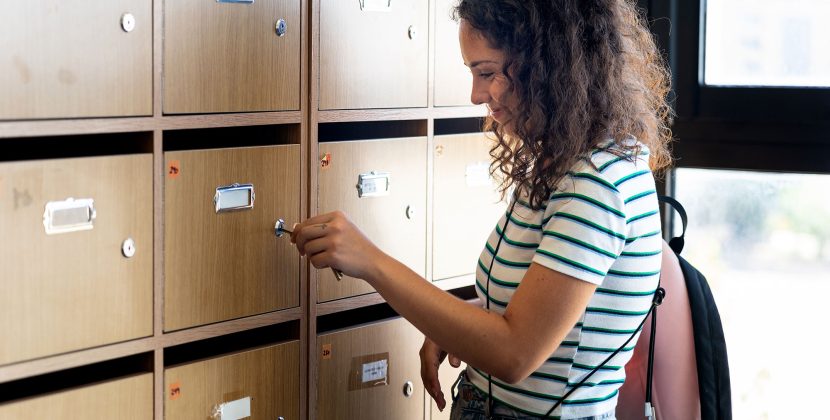
How to Use UNSW's 24/7 Lockers if You're an International Student (2026)

How to Use UNSW’s 24/7 Lockers if You’re an International Student (2026)

  • Sara
  • April 6, 2026
  • 2 min read
  • 46
Why USYD is the Only Sydney Uni Giving $500/Year in Food Vouchers

Why USYD is the Only Sydney University Giving $500/Year in Food Vouchers

  • Maithili
  • April 6, 2026
  • 2 min read
  • 40
  • Prev.
  • 1
  • …
  • 33
  • 34
  • 35
  • 36
  • 37
  • …
  • 44
  • Next

Popular Post

Top 10 High-Interest Savings Accounts Australia: A Student Guide

Top 10 High-Interest Savings Accounts Australia: A Student Guide (537)

  • Aarav
  • March 6, 2026
Regional Australia Postcode List 2026: The “Extra 5 Points” Guide

Regional Australia Postcode List 2026: The “Extra 5 Points” Guide (505)

  • Maithili
  • March 17, 2026
Australia Student Visa Refund Policy: Rejection Guide

Australia Student Visa Refund Policy: Rejection Guide (469)

  • Sara
  • March 9, 2026
Felix Mobile Review 2026: Is the $20 Unlimited Data Plan Worth It?

Felix Mobile Review 2026: Is the $20 Unlimited Data Plan Worth It? (456)

  • Aarav
  • March 25, 2026
Telstra vs Optus vs Vodafone 2026: Australia’s Best Network Comparison

Telstra vs Optus vs Vodafone 2026: Australia’s Best Network Comparison (443)

  • Maithili
  • March 16, 2026

Newsletter

Weather

Dhaka
overcast clouds
26℃
humidity: 92%
wind: 4.46 km/h
  • 26℃
    Wed
  • 25℃
    Thu
  • 29℃
    Fri
  • 33℃
    Sat
  • 33℃
    Sun
  • 26℃
    Mon
  • 32℃
    Tue

How to Spot Authentic Australian-Made Skincare Products (2026)

  • Buhgalteri_blMr
  • 17 Jul 2026

How to Spot Authentic Australian-Made Skincare Products (2026)

  • Buhgalteri_yqMr
  • 17 Jul 2026

How to Spot Authentic Australian-Made Skincare Products (2026)

  • buhgalters_fypn
  • 12 Jul 2026

How to Spot Authentic Australian-Made Skincare Products (2026)

  • stoleshnic_sqEn
  • 9 Jul 2026

How to Spot Authentic Australian-Made Skincare Products (2026)

  • dizaynersk_udOn
  • 9 Jul 2026
Australia Student & Expat Resource Hub | NammAustralia

Nammaustralia is a practical guide for international students moving to Australia. We cover visas, jobs, accommodation, cost of living, and PR pathways with clear, research-based insights for Indian and GCC students.

Disclaimer: The information provided is for general informational purposes only. Please verify details with official sources. We are not liable for decisions made based on this content.

Start Your Journey

  • Pre-Departure Checklist
  • First 48 Hours Guide
  • Student Visa 500 Guide
  • Student Budget 2026
  • TFN Application Guide

Explore by Topic

  • Study in Australia
  • Work in Australia
  • PR & Immigration
  • Accommodation
  • Life in Australia

© 2026 Nammaustralia. All rights reserved.

  • Privacy Policy
  • Disclaimer
  • Terms of Use
✉

Living in or moving to Australia?

Join 2,400+ expats getting weekly guides on banking, accommodation, visas & student life in Australia

🔒  No spam. Unsubscribe anytime.